


 By
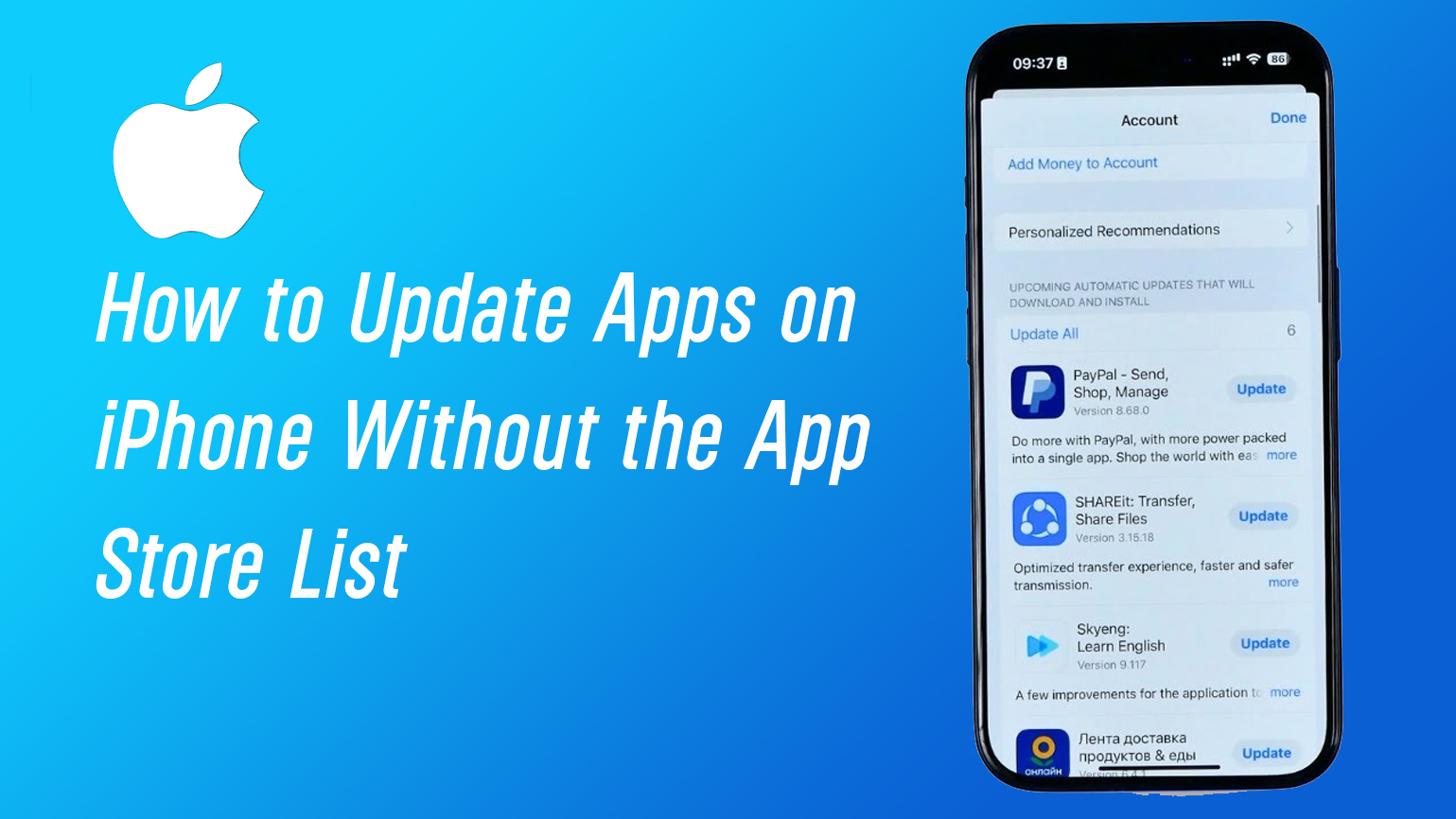
By Keeping your apps updated is essential for security, performance, and access to new features. Yet many iPhone users occasionally face a confusing problem: the App Store update list doesn’t appear, making it difficult to see which apps need updates.
If you’re wondering how to update apps on iPhone without the App Store list, the good news is that several reliable methods exist. Apple provides official guidance on manual and automatic updates, and most issues can be solved with a few simple steps.
This guide explains practical ways to update apps even when the usual update list is missing, along with troubleshooting tips that follow Apple’s recommended practices.
Why the App Store Update List May Not Appear
Before learning the solutions, it helps to understand why the list sometimes disappears.
Common reasons include:
- Temporary App Store refresh issues
- Automatic updates already enabled
- Network connection problems
- Account or App Store synchronization delays
According to Apple’s official documentation, apps downloaded from the App Store typically update automatically by default, which means you may not always see pending updates in the list.
If the list is empty but you suspect updates exist, you can still update apps manually.
Update Apps Directly From Each App Page
One of the easiest ways to update apps without the update list is by visiting the app’s page in the App Store.
Steps
- Open the App Store on your iPhone.
- Tap the Search tab.
- Type the name of the app you want to update.
- Open the app’s page.
- If an update is available, tap Update.
If the button shows Open, the app is already updated.
Example
Suppose your banking app isn’t working properly. Searching for it in the App Store may reveal an update button even if the updates list is empty.
Update Apps From Your App Store Profile
Another method involves accessing updates through your account profile.
Steps
- Open the App Store.
- Tap your profile picture in the top-right corner.
- Scroll down to the section showing pending updates.
- Tap Update next to an app or Update All.
Apple confirms this as the official method for manually updating apps on iPhone and iPad devices.
If the list doesn’t appear immediately, try refreshing the page by pulling down on the screen.
Enable Automatic App Updates
If you prefer not to manage updates manually, enabling automatic updates can prevent this issue altogether.
Steps to Turn On Automatic Updates
- Open Settings.
- Tap App Store.
- Turn on App Updates under Automatic Downloads.
With this setting enabled, your iPhone will install updates automatically when connected to Wi-Fi or cellular data, depending on your preferences.
Update Apps From the Home Screen Shortcut
Many users overlook this quick method.
Steps
- Press and hold the App Store icon on your home screen.
- Tap Updates if the shortcut appears.
- Update apps directly from the list.
This shortcut can open the updates section even if navigating through the App Store normally fails.
Troubleshoot App Update Problems
If you still cannot update apps, try the following fixes recommended by Apple support resources.
Basic Troubleshooting
- Restart your iPhone
- Check your internet connection
- Sign out and back into the App Store
- Ensure your Apple ID payment method is valid
Apple notes that some downloads or updates may fail if billing information is missing or outdated.
Restarting the device is often the simplest fix when the App Store behaves unexpectedly.
Why App Updates Matter
Updating apps is not just about getting new features. It also helps:
- Fix security vulnerabilities
- Improve compatibility with the latest iOS versions
- Resolve bugs and performance issues
- Add new tools or design improvements
For example, many developers release updates to ensure their apps work smoothly after major iOS upgrades.
Best Practices for Managing App Updates
To keep your iPhone running smoothly:
- Enable automatic updates for convenience
- Periodically check the App Store profile page
- Update important apps like banking or messaging first
- Keep your iOS system updated
These habits ensure your apps remain secure and fully functional.
Frequently Asked Questions (FAQ)
How do I update apps on iPhone if the update list is missing?
You can search for each app in the App Store and tap Update from the app’s page. You can also access updates through your App Store profile.
Do iPhone apps update automatically?
Yes. Apple states that apps downloaded from the App Store automatically update by default, though you can also update them manually.
Why can’t I update apps on my iPhone?
Possible reasons include poor internet connection, App Store glitches, missing payment details, or device software issues. Apple recommends restarting your device and checking your account settings.
Is it safe to update apps regularly?
Yes. Updates often include security patches and bug fixes that help protect your device and improve app performance.
Conclusion
Learning how to update apps on iPhone without the App Store list can save time and prevent frustration. Even if the updates section does not appear, you can still update apps by searching for them individually, accessing your App Store profile, or enabling automatic updates.
Most update issues are temporary and easily fixed with a refresh or device restart. By following the official steps and best practices above, you can ensure your iPhone apps remain secure, reliable, and up to date.
Tip: Take a minute today to review your App Store settings and enable automatic updates—it’s the easiest way to keep everything running smoothly.
more, visit here: Magicwingspost